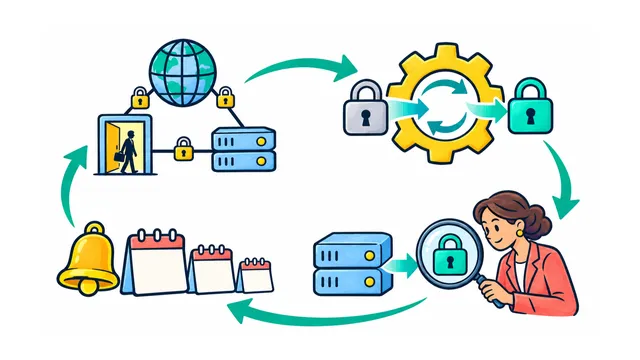
Ask for Notification Permission When the User Can See Why
Plan when a business app asks for notification permission on Android and iOS, keep it useful after a refusal and test every permission state.
Leer en español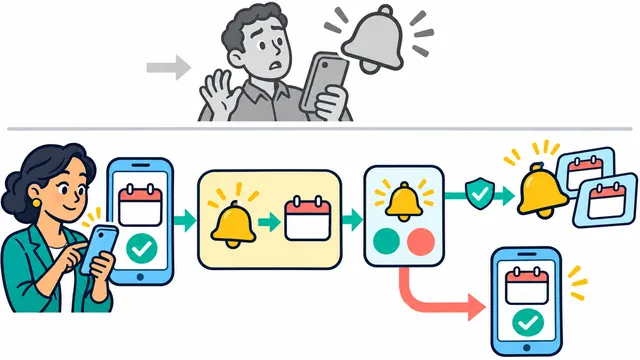


Many business apps ask for permission to send notifications as soon as they open. At that moment the user has not seen what the notifications are for, so a refusal is an easy choice. Both Android and Apple recommend asking in context instead. This article turns that guidance into a flow you can specify and test.
The example is a hypothetical service-booking app. Its notifications tell customers when an appointment is confirmed, rescheduled or about to start.
What the platforms say
On Android 13 (API level 33) and higher, sending most notifications requires the POST_NOTIFICATIONS runtime permission, and notifications are off by default for newly installed apps. If the app targets Android 13 or higher, it controls when the request appears. Android’s guidance is to let people get familiar with the app first and to trigger the request from a related action. See the Android notification permission guide.
Apple recommends requesting authorization in a context that helps people understand why the app needs it, rather than automatically on first launch. The system prompts only the first time; later requests do not show the prompt again. Apple also describes provisional authorization, which delivers notifications quietly to Notification Center so people can evaluate them first. See Asking permission to use notifications.
Choose the moment that explains the value
In the booking app, the natural moment is right after the customer confirms an appointment. At that point, explain in one sentence which notifications they will receive, such as a confirmation, a change of time or a reminder, and offer a clear choice to turn them on. Only if they accept, show the system request.
Agree on the following before development starts:
- which events send a notification and which stay inside the app;
- the action that triggers the request, and what happens if the user dismisses the explanation;
- whether to use provisional authorization on iOS for low-urgency updates;
- where in the app’s settings the user can review this choice later.
Keep the app useful when the answer is no
A refusal should not break the booking. The appointment status should remain visible in the app, for example on the booking screen, and any important change should still appear there the next time the user opens it.
Because people can change the setting at any time, check the current permission before sending or scheduling a notification. Android provides areNotificationsEnabled() and Apple provides the notification settings API for this. Do not keep asking: on iOS the system will not show the prompt again, and on Android a repeated request needs a reason the user can understand.
Test the permission states
Write acceptance cases for each state, not only for “allowed”:
- new install, request not yet shown;
- allowed after the booking explanation;
- refused, then the appointment changes;
- explanation dismissed without a choice;
- permission turned off later in system settings;
- provisional authorization on iOS, if used.
Android documents adb commands that reset and simulate these states without wiping the test device. For each case, record what the user sees, whether a notification was sent and where the appointment status appears in the app.
Contact Dynelink to plan and test the notification flow of your business’s mobile app.
AI-generated conceptual illustration; not a client screenshot.